


Disclosure: TheSkypedia is run by the team behind KSPElectronics, an authorised Bambu Lab reseller in India. We test the products we review ourselves. Links to kspelectronics.in go to our own store, and we may earn from purchases made there. Read our full disclosure.
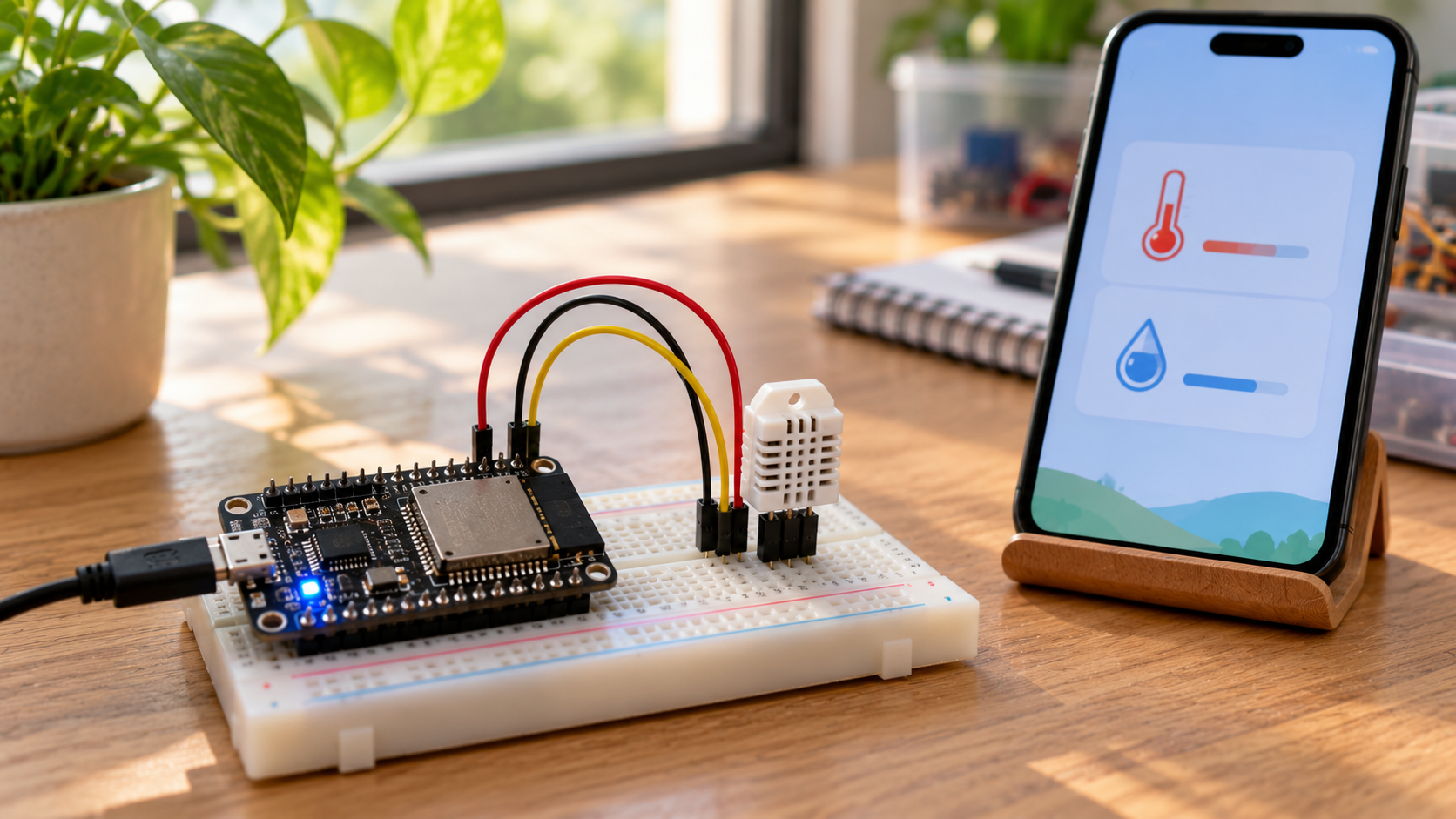
In this project you will build a Wi-Fi weather station that shows live temperature and humidity on a web page you can open from any phone or laptop on your network. It takes about 30 minutes, costs under ₹600 in parts, and needs no soldering.
What you will learn
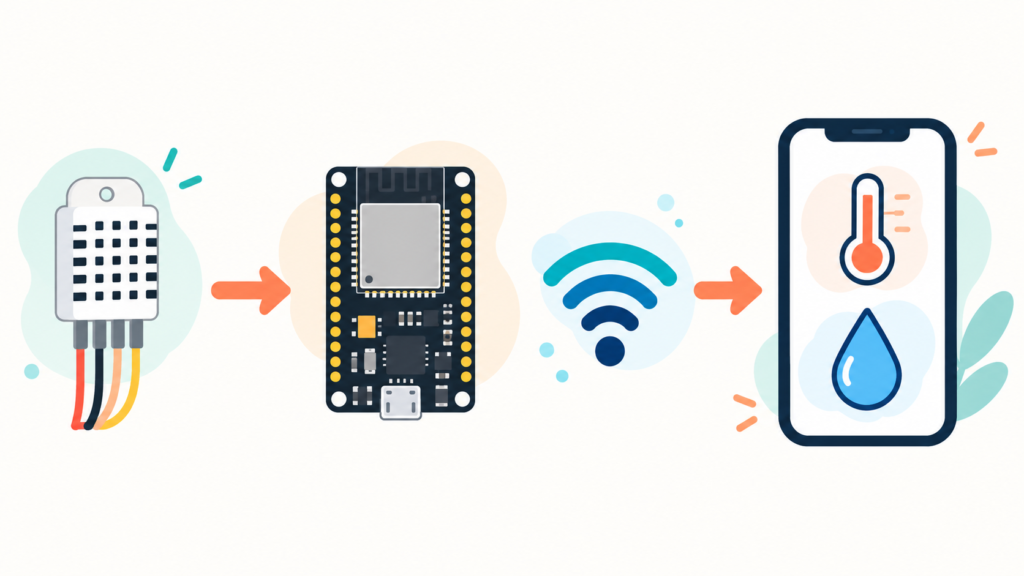
- Reading a DHT22 temperature and humidity sensor with an ESP32
- Connecting the ESP32 to Wi-Fi
- Serving a live web page and a JSON API from the board
Parts used in this project
| Part | Qty | Price | Buy |
|---|---|---|---|
| ESP32 Development Board (CP2102, 30-pin) | 1 | ₹400 | KSPElectronics |
| DHT22 temperature & humidity sensor module | 1 | ₹130 | KSPElectronics |
| Breadboard + 3 female-to-male jumper wires | 1 set | — | KSPElectronics |
| Micro-USB data cable | 1 | — | — |
Wiring
| DHT22 module pin | ESP32 pin |
|---|---|
| VCC / + | 3V3 |
| DATA / OUT | GPIO 4 (D4) |
| GND / − | GND |
The DHT22 module (on a small PCB with 3 pins) already has a pull-up resistor. If you use the bare 4-pin sensor instead, add a 10 kΩ resistor between DATA and 3V3, and leave pin 3 unconnected.
Step 1: Set up the Arduino IDE
- Install the Arduino IDE 2.
- Go to File → Preferences and add this URL to Additional boards manager URLs:
https://espressif.github.io/arduino-esp32/package_esp32_index.json - Open Boards Manager, search “esp32” and install esp32 by Espressif Systems.
- Open Library Manager and install DHT sensor library by Adafruit (accept the prompt to also install Adafruit Unified Sensor).
- Install the CP2102 USB driver if your computer does not detect the board.
Step 2: Upload the code
Paste the sketch below, replace the Wi-Fi name and password, select Tools → Board → ESP32 Dev Module and the correct port, then click Upload. If the upload stops at “Connecting…”, hold the BOOT button on the board until it starts.
#include <WiFi.h>
#include <WebServer.h>
#include <DHT.h>
#define DHTPIN 4 // DHT22 data pin -> GPIO 4
#define DHTTYPE DHT22
const char* ssid = "YOUR_WIFI_NAME";
const char* password = "YOUR_WIFI_PASSWORD";
DHT dht(DHTPIN, DHTTYPE);
WebServer server(80);
float temperature = NAN;
float humidity = NAN;
unsigned long lastRead = 0;
void readSensor() {
float h = dht.readHumidity();
float t = dht.readTemperature(); // Celsius
if (!isnan(h) && !isnan(t)) {
humidity = h;
temperature = t;
} else {
Serial.println("DHT22 read failed - check wiring");
}
}
void handleRoot() {
String html = "<!DOCTYPE html><html><head>"
"<meta name='viewport' content='width=device-width,initial-scale=1'>"
"<meta http-equiv='refresh' content='10'>"
"<title>ESP32 Weather Station</title>"
"<style>body{font-family:sans-serif;text-align:center;padding:2em}"
".v{font-size:2.5em;margin:.2em}</style></head><body>"
"<h1>ESP32 Weather Station</h1>";
if (isnan(temperature)) {
html += "<p>Waiting for the first reading...</p>";
} else {
float heatIndex = dht.computeHeatIndex(temperature, humidity, false);
html += "<p>Temperature</p><p class='v'>" + String(temperature, 1) + " °C</p>";
html += "<p>Humidity</p><p class='v'>" + String(humidity, 1) + " %</p>";
html += "<p>Feels like " + String(heatIndex, 1) + " °C</p>";
}
html += "</body></html>";
server.send(200, "text/html", html);
}
void handleData() {
String json = "{\"temperature\":";
json += isnan(temperature) ? String("null") : String(temperature, 1);
json += ",\"humidity\":";
json += isnan(humidity) ? String("null") : String(humidity, 1);
json += "}";
server.send(200, "application/json", json);
}
void setup() {
Serial.begin(115200);
dht.begin();
WiFi.mode(WIFI_STA);
WiFi.begin(ssid, password);
Serial.print("Connecting to Wi-Fi");
while (WiFi.status() != WL_CONNECTED) {
delay(500);
Serial.print(".");
}
Serial.println();
Serial.print("Open this in your browser: http://");
Serial.println(WiFi.localIP());
server.on("/", handleRoot);
server.on("/data", handleData);
server.begin();
delay(2000); // DHT22 needs ~2 s after power-up
readSensor();
}
void loop() {
server.handleClient();
if (millis() - lastRead > 2000) { // DHT22: max one reading every 2 s
lastRead = millis();
readSensor();
}
}Step 3: Open your weather station
- Open Tools → Serial Monitor and set it to 115200 baud.
- Press the EN/RST button on the ESP32. After it connects, it prints an address such as
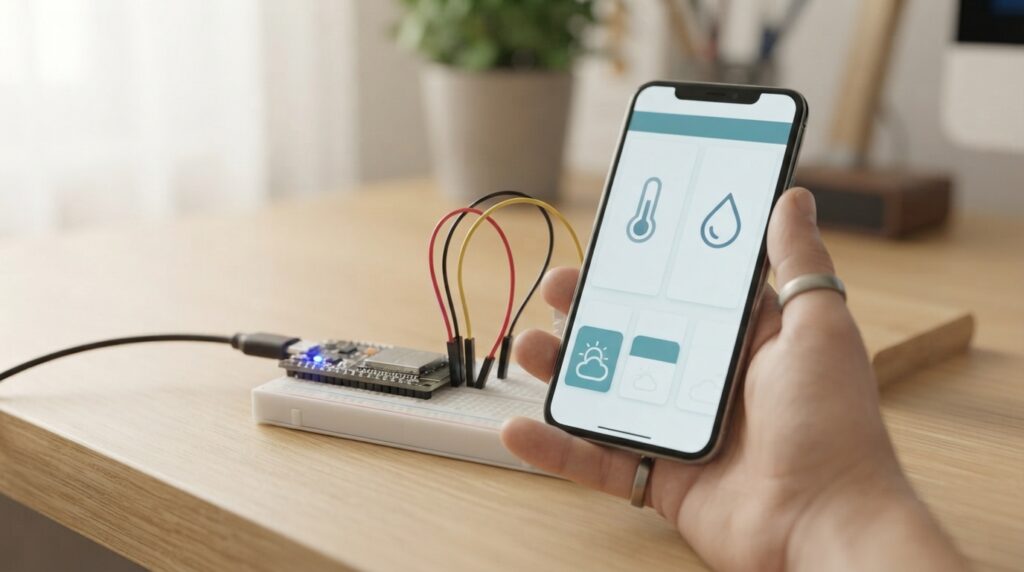
http://192.168.1.45. - Open that address on a phone or laptop on the same Wi-Fi. The page refreshes every 10 seconds.
- For raw data (to use in apps or Home Assistant), open
http://<your-ip>/data, which returns JSON like{"temperature":28.4,"humidity":61.0}.
Troubleshooting
| Problem | Fix |
|---|---|
| “DHT22 read failed” in Serial Monitor | Check the DATA wire is on GPIO 4 and VCC is on 3V3. With the bare sensor, add the 10 kΩ pull-up. |
| Stuck on “Connecting to Wi-Fi…” | The ESP32 supports only 2.4 GHz Wi-Fi. Check the name and password, and that your router is not 5 GHz-only. |
| Board not showing in Tools → Port | Use a data cable (many charging cables have no data lines) and install the CP2102 driver. |
| Readings jump or read too high | Keep the sensor away from the ESP32 and its regulator, which warm up. Mount it on short wires, out of direct sunlight. |
| Random resets | Use a better USB cable or a 5 V 1 A supply. Wi-Fi draws current peaks the board needs to handle. |
Ideas to take it further
- Add a 20×4 LCD or an OLED screen to show readings without a phone.
- Swap the DHT22 for a BME280 to add air pressure.
- Send readings to Google Sheets, ThingSpeak or Telegram every 10 minutes.
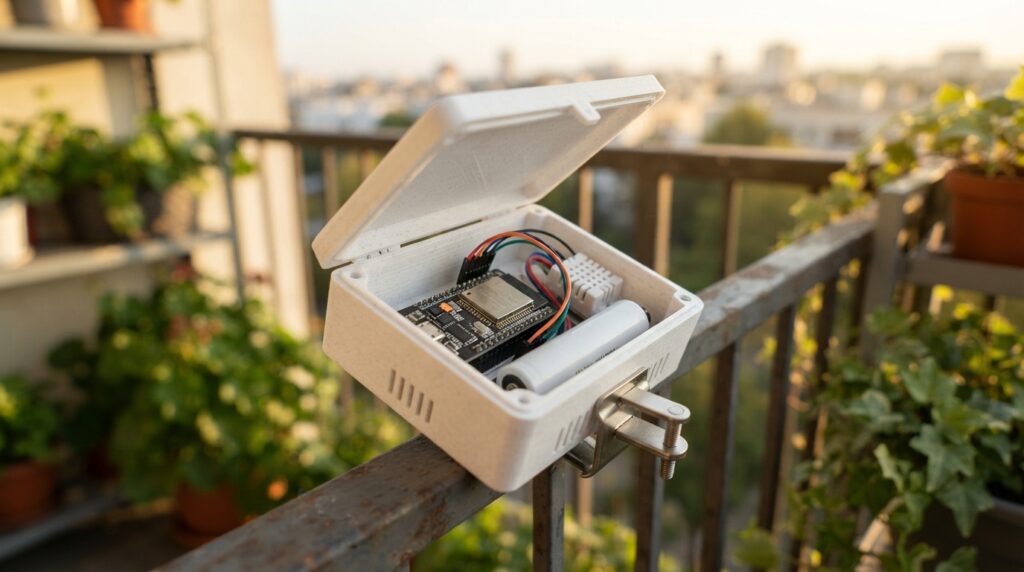
- Use deep sleep and a Li-ion battery to make a wireless outdoor sensor.
New to these boards? Read ESP32 vs Arduino Uno first.
Related guides
- ESP32 vs Arduino Uno: Which Board Should You Choose? (2026)
- An Introduction to Arduino IDE and ESP32: A Powerful Combination for IoT Projects
- What is IoT? A Beginner’s Guide to the Internet of Things
- What is Raspberry Pi? Beginner Friendly Guide (2026)

4 Comments
Pingback: Best 3D Printer for Beginners in India (2026)
Pingback: IoT Developer Roadmap: Embedded and Application Paths (Step-by-Step)
Pingback: Arduino IDE and ESP32: Beginner's Introduction
Pingback: What is IoT? A Beginner’s Guide to the Internet of Things